 Skip to content
SoftwareFolder on WordPress
Table of Contents
Getting Started with WordPress Block Editor
Why I Ditched Drag-and Drop Page Builders for the WordPress Block Editor
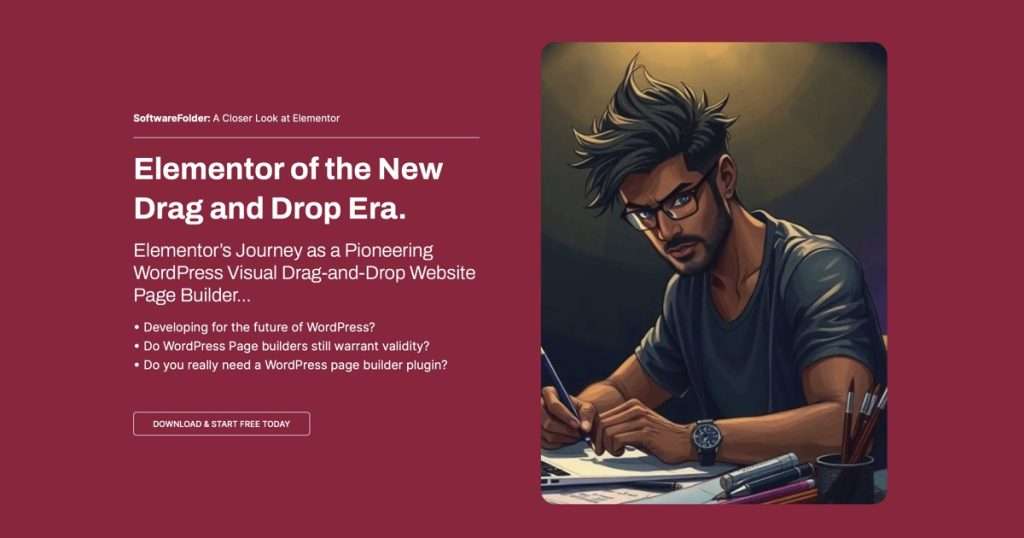
If you’ve ever built a WordPress site, you’ve likely been tempted by the flashy drag-and-drop page builders. I was too. As someone with a graphic design background, I craved an interface that felt like standard design software, intuitive, visual, and flexible. Page builders delivered on that promise.

Until one major error took my entire site down.
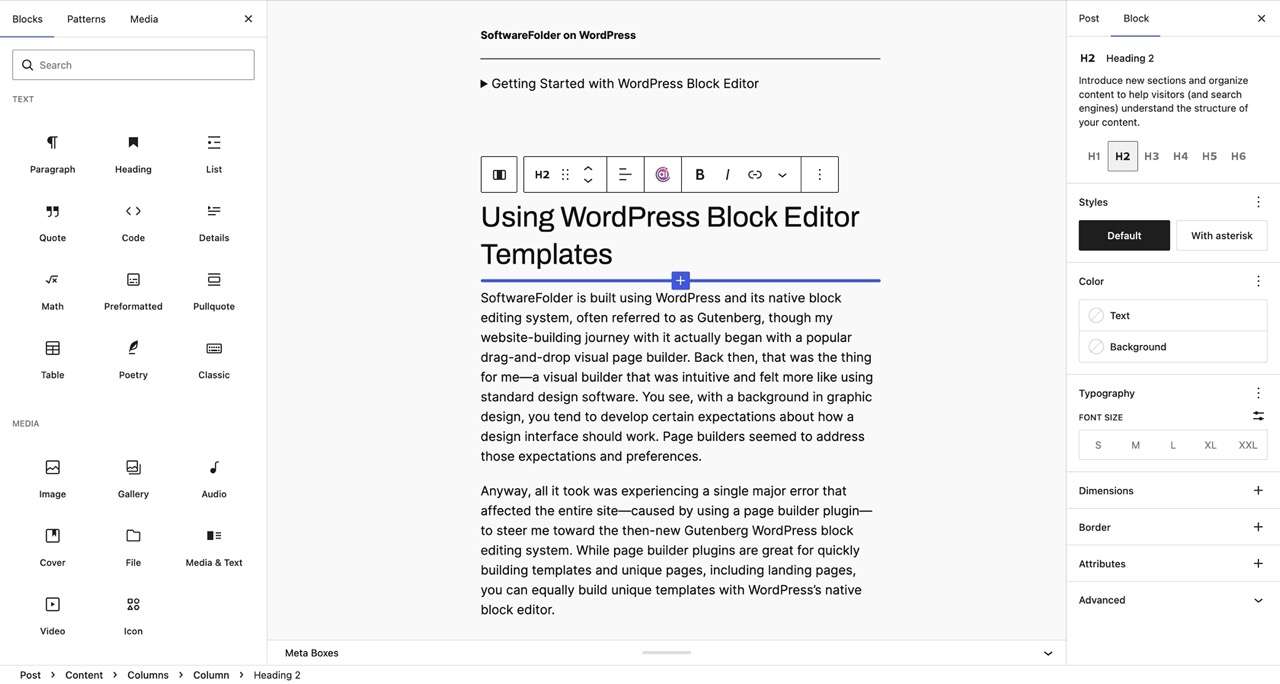
SoftwareFolder is built using WordPress and its native block editing system, often referred to as Gutenberg, though my website‑building journey actually began with a popular drag‑and‑drop visual page builder.”
Back then, a visual builder that was intuitive and felt more like standard design software was exactly what I wanted.
You see, with a background in graphic design, you tend to, with little compromise, develop certain expectations about how an interface for designing should work. Page builders seemed to address those expectations, nuances, and preferences.
Anyway, all it took was experiencing a single major error that affected the entire site, caused by using a “page builder plugin”, to steer me toward the then-new Gutenberg WordPress block editing system. While page builder plugins are great for intuitively building templates and unique pages, including landing pages, the fact is you can build unique templates and pages just as well with WordPress’s native block editor.
That said, I can’t pretend page builders have no merit left. They are great for complex, pixel‑perfect layouts that need to come together in minutes, or for handing a site over to a client who wants complete drag‑and‑drop freedom without ever touching a block setting, a mature page builder still makes a lot of sense.
The block editor has grown remarkably, although it doesn’t always replicate the sheer design velocity and fine‑grained control that a dedicated builder offers. Ultimately, it’s less about which tool is best universally and more about matching the right tool to the project, the team, and the long‑term maintenance you’re prepared to take on.
Why the Block Editor Is a Safe Bet
Now, while I’m sure that resolving WordPress website errors can often be a very simple fix, a broken site during a promotion with a healthy stream of visitors is far from impressive—and troubleshooting the cause isn’t always quick or straightforward. The source of an error can vary widely: plugin conflicts, theme incompatibilities, server environment issues, or even a faulty database update.
That’s why it’s sensible to treat the system built natively into WordPress core as your safest bet when choosing which tools to build with. And in my experience, that assumption holds up.
The block editor’s deep integration with core updates, lack of third‑party dependency bloat, and ongoing maintenance by the WordPress open‑source community make it a reliable foundation for both site building and long‑term scalability
Block Editing Compromise
Of course, “safe” isn’t the only thing that matters. As suggested earlier, there are projects where the creative speed of a page builder with pixel‑perfect control is essential, or where advanced animation tools or a client who demands a familiar drag‑and‑drop environment may outweigh the decision to take the strictly native block editor route
For a short‑term campaign landing page that needs to look flawless tomorrow and won’t be touched for months, accepting a little extra dependency might be a fair trade‑off.
Safety is a priority, but it’s not always the only one, and understanding that balance helps you pick the right tool for the job at hand.
How WordPress Gutenberg Templates Work
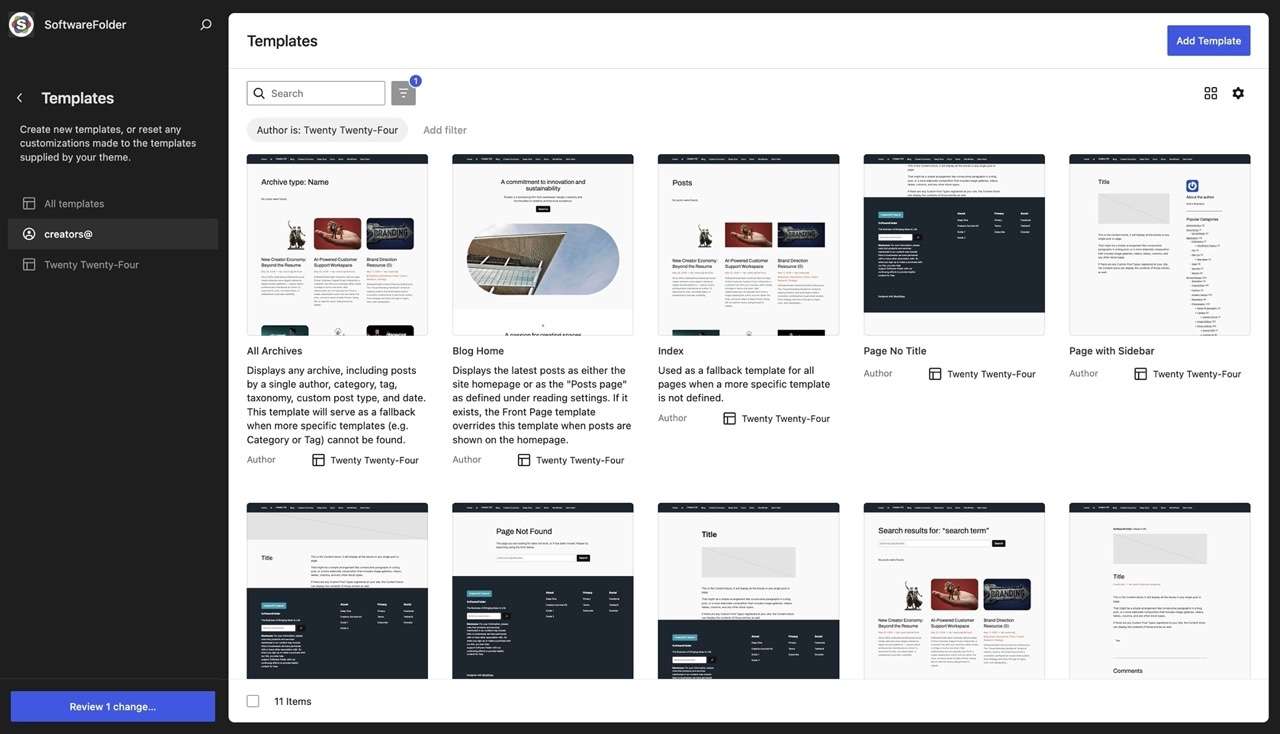
Understanding how WordPress templates work starts with template inheritance, often called the template hierarchy. When a visitor requests a page, WordPress follows a specific order of fallback templates. For example, if you create a custom template for a single post, WordPress will use that; if not, it will look for single.php, then index.php, and so on.
This inheritance system ensures that your site always has a fallback, but it also means that without a clear understanding of the hierarchy, you might unknowingly override templates or create conflicts.
The block editor simplifies this by introducing block templates—.html files (or database-stored templates) that define a layout using blocks rather than PHP. These block templates respect the same hierarchy but replace hard-coded theme files with flexible, editable block structures.
Block Templates and Template Parts
Now, within that system, it’s useful to distinguish between block templates and template parts. A block template is the complete layout for a specific content type—for example, the single.html template that controls how a single post appears.
A template part, on the other hand, is a reusable component, like a header, footer, or sidebar, that can be inserted across multiple block templates. In practice, this separation allows you to update your site-wide header once (using the Header template part) and see that change reflected everywhere, without editing every individual template.
This modular approach reduces redundancy and makes maintenance far more efficient than relying on additional page builders.
Building a WordPress Site from Scratch
Starting from Scratch with the Block Editor.
Unlike designing a brochure, booklet, or magazine for print—which usually follows a fairly linear process—designing for the web adds interactive cues and the need to display appropriately across varying devices and formats.
Now, I’ve always had a quiet argument with myself about how to build a website that displays as intended across many different devices and formats. After all, there are only a few layout patterns that provide a naturally safe foundation for a responsive experience—is everything else really just cosmetic? (comments below)
Anyway, when it comes to building a WordPress website today, there is far less friction between the different hosting options available. This is your starting point, choosing a host, unless of course you are building locally to begin with. Nonetheless, once you are up and running with the latest WordPress installed, you are ready to start building your first posts and pages.
Now, this is where you begin to set your visual branding, you can start with a light theme such TwentyTwenty-Four and by editing the existing templates, color-ways, typography, etc. achieving your personal look and feel is readily achievable.
RELATED CONTENT

Maintaining Site Performance
Build on a Solid Foundation
- Choose a lightweight, well-coded theme – it keeps both the editor and front end fast.
- Stick to a few well-supported block plugins; too many add conflict risk and slow things down.
- Test changes in a staging environment before going live.
Quick Fixes for Common Editor Issues
Editor won’t load (blank screen/spinner)
→ Almost always a plugin conflict.
- Deactivate all plugins.
- Reactivate them one by one to find the culprit.
“Invalid Block Content” error
→ Usually caused by broken HTML.
- Open the block menu, choose “Edit as HTML.”
- Fix missing tags or malformed code directly.
Speed Up a Sluggish Editor
If your site has hundreds of categories, tags, or custom taxonomy terms, long checkbox lists slow the editor noticeably.
- Switch from checkboxes to autocomplete (tag‑style) inputs.
- This reduces on‑screen elements and boosts editing speed dramatically.
Long‑Term Habits for Reliable Performance
- Keep core, theme, and plugins updated – updates include speed and security fixes.
- Delete unused plugins and themes – every inactive component is unnecessary code.
- Always test major updates on a staging site first.
- Regularly audit what’s installed and remove anything you’re not using.
Good performance isn’t a one‑time task; it’s built from small, consistent choices.
Cheat Sheets
SoftwareFolder’s WordPress Block Editor Cheat Sheet

Windows Cheat Sheet
Your quick reference for the WordPress Block Editor (Gutenberg) – WordPress 6.0+
BLOCK TYPES – QUICK OVERVIEW
Common blocks you’ll use every day:
- Paragraph – Standard text block
- Heading – H2, H3 … for structure
- Image – Upload or select from Media Library
- Gallery – Multiple images in a grid
- List – Bulleted or numbered
- Quote – Styled quotation
- Cover – Full‑width image/video with text overlay
- Buttons – One or more call‑to‑action buttons
- Columns – Multi‑column layout container
- Group – Wraps multiple blocks together (custom background, spacing)
- Spacer – Adjustable empty space
- Separator – Horizontal line
- File – Downloadable file link
- Video – Embed self‑hosted video
- Embed – YouTube, Twitter, Vimeo etc. (paste URL on its own line)
Add any block by typing /blockname and pressing Enter.
TIPS & TRICKS
- Slash commands: In an empty paragraph, type
/and then the block name (e.g.,/heading,/image,/columns) to insert it instantly. - Move blocks freely: Drag the block toolbar or use the List View (Ctrl + “) for complex layouts.
- Reusable blocks / Patterns: Save any block (or group) as a reusable block so you can insert the same content everywhere. Patterns are pre‑designed layouts you can drop in from the inserter.
- Distraction‑free mode: Click the three‑dot menu (top‑right) → “Distraction free” to hide the UI.
- Keyboard shortcut reference: Press
Shift + Alt + Hto toggle the top toolbar and see contextual shortcuts, or open the Help panel withShift + Alt + Hthen click “Keyboard Shortcuts”. - Copy/paste styles: Select a block, copy (
Ctrl+C), then right‑click another block and choose “Paste Styles” to copy just the appearance. - Lock blocks: In the block settings, you can lock a block to prevent moving or deleting it – great for templates.
- Full‑site editing (FSE): If your theme supports it, you can edit headers, footers, and templates using the same block editor.
General Shortcuts
Ctrl + S (Win) / Cmd + S (Mac) Save draft / publish
Ctrl + Z / Cmd + Z Undo
Ctrl + Shift + Z / Cmd + Shift + Z Redo
Ctrl + Shift + Alt + M Toggle between Visual and Code editor
Shift + Alt + H Show/hide the top toolbar
Ctrl + , (comma) Open the block settings sidebar
Esc Clear selection / return to navigation mode
Tab / Shift + Tab Move focus forward/backward through UI elements
Text Formatting
Ctrl + B / Cmd + B Bold
Ctrl + I / Cmd + I Italic
Ctrl + U / Cmd + U Underline
Ctrl + K / Cmd + K Insert/edit link
Shift + Alt + D Strikethrough
Ctrl + Shift + X / Cmd + Shift + X Highlight / code format (inline code)
Alt + Shift + 1…6 Heading 1 – Heading 6 (on a heading block)
## + Space Quickly start a Heading 2 block
SoftwareFolder’s WordPress Block Editor Cheat Sheet

Apple Cheat Sheet
Your quick reference for the WordPress Block Editor (Gutenberg) – WordPress 6.0+
BLOCK TYPES – QUICK OVERVIEW
Common blocks you’ll use every day:
- Paragraph – Standard text block
- Heading – H2, H3 … for structure
- Image – Upload or select from Media Library
- Gallery – Multiple images in a grid
- List – Bulleted or numbered
- Quote – Styled quotation
- Cover – Full‑width image/video with text overlay
- Buttons – One or more call‑to‑action buttons
- Columns – Multi‑column layout container
- Group – Wraps multiple blocks together (custom background, spacing)
- Spacer – Adjustable empty space
- Separator – Horizontal line
- File – Downloadable file link
- Video – Embed self‑hosted video
- Embed – YouTube, Twitter, Vimeo etc. (paste URL on its own line)
Add any block by typing /blockname and pressing Enter.
TIPS & TRICKS
- Slash commands: In an empty paragraph, type
/and then the block name (e.g.,/heading,/image,/columns) to insert it instantly. - Move blocks freely: Drag the block toolbar or use the List View (Cmd + “) for complex layouts.
- Reusable blocks / Patterns: Save any block (or group) as a reusable block so you can insert the same content everywhere. Patterns are pre‑designed layouts you can drop in from the inserter.
- Distraction‑free mode: Click the three‑dot menu (top‑right) → “Distraction free” to hide the UI.
- Keyboard shortcut reference: Press
Shift + Option + Hto toggle the top toolbar and see contextual shortcuts, or open the Help panel withShift + Option + Hthen click “Keyboard Shortcuts”. - Copy/paste styles: Select a block, copy (
Cmd + C), then right‑click another block and choose “Paste Styles” to copy just the appearance. - Lock blocks: In the block settings, you can lock a block to prevent moving or deleting it – great for templates.
- Full‑site editing (FSE): If your theme supports it, you can edit headers, footers, and templates using the same block editor.
General Shortcuts
Cmd + S Save draft / publish
Cmd + Z Undo
Cmd + Shift + Z Redo
Cmd + Shift + Option + M Toggle between Visual and Code editor
Shift + Option + H Show/hide the top toolbar
Cmd + , (comma) Open the block settings sidebar
Esc Clear selection / return to navigation mode
Tab / Shift + Tab Move focus forward/backward through UI elements
Text Formatting
Cmd + B Bold
Cmd + I Italic
Cmd + U Underline
Cmd + K Insert/edit link
Shift + Option + D Strikethrough
Cmd + Shift + X Highlight / inline code format
Option + Shift + 1…6 Heading 1 – Heading 6 (on a heading block)
## + Space Quickly start a Heading 2 block
Full-Site Editing
Modern WordPress goes far beyond editing posts and pages with advanced capabilities and FSE. If supported, compatible themes, allow editing your site’s headers, footers, and all templates using the same block editor interface
The WordPress core editor now includes powerful built-in features:
- Accordion, Term Query, Time to Read, and Math blocks.
- Responsive Visibility: hide blocks on specific devices (mobile, tablet, desktop) directly from the editor.
- Per-Block Custom CSS: Add custom CSS to individual blocks for fine-tuned control without breaking the whole site.
SoftwareFolder on WordPress
Install WordPress

Get started with WordPress Managed Hosting